
How to get free edu email (Method 1) – VCCS
There are 6 steps are required to create free edu email without any error, just need of patience to get free edu email, it takes time to get edu email.
Step 1: Goto Virginia Community University/College official Website and Create an account with Fake details, as we suggested below details – Create New Account Here
Step 2: For the above account creation you need US-based address details, which are available in this Link for US Details, once the address generator, you have to take a temporary email on the same link, just navigate to below in the same window.
Step 3: Save those Fake name, address, and Email address for temporary in notepad until account creation is done.
Step 4: Once the above details collected, then click on the continue or Next button in the process of the SignUp process,
Step 5:
- First name and last name: Enter the Collected Fake Name (First and Last)
- Birthdate, Social Security Number (SSN): Enter the Birthdate. SSN number (used for healthcare)
- Gender: Enter the Gender Details (As per profile you selected)
- Racial or ethnic identification: White
- Hispanic or Latino: No
- Have you ever applied, attended: No
Click Save and Continue
- Enter the Generated Temporary email: Available on the same link
- Is this your permanent address: Yes
You can leave the telephone number (optional) and then go for Review, Save, and Continue,
- Which high school education: I don’t have a GED/High …….
- The last date attended: 01/2017
- Highest grade completed: 11th grade.
- Have you ever attend: No
- I have planned to earn a degree: No
plan to start class: Select any class and Click Save and Continue
- Have you ever served military: No
Click Save and Continue
- Parent 1 and 2: Select anyone
- What is your current status?: The native US
- Primary spoken language: English
Step 6:
Click Save and Complete button, It redirects to a new page and shows email ID and Temp Password, note down those details and Login Here and change the Temp Password.
Once you changed your password, now you can use that email ID for various offers as listed above offers and benefits.
Final Step: After the creation of email with temp password by using below method, Login Here and change the Temp Password and make it as a permanent Free edu email account 🙂
How to get free edu email (Method 2) – TCCD
Once the account get edu email id and password, then login here and avail the above-listed offers and benefits from available resources.
Step 1: Signup with above well explained fake details using the same tool for person/student details – Create Account here.
Step 2: Provide the required information, and fill the details accordingly.
Step 3: Once all the steps completed, then save the application and submit them accordingly, after submission, you will get an email ID and Password.
Step 4: Use generated get Edu email id and password, Login here to avail the benefits and offers.
How to get free edu email (Method 3) – Cuesta College
- Go to the Cuesta College official website link from the menu
- Now, the link is redirected to the Cuesta College’s website, Click on the “Apply Online Today ” for the latest term.
- The page is redirected to the http://opencccapply.net/, Here, use the Fake name, address, SSN, and other information from Here (Fake Address Generator)
- Once the signup completed then select the “Cuesta College”.
- Now, Click on the “Start Application” and complete the application form accordingly.
- After submission of the online application form, you will get an email with instructions with get edu email. (your email ID shows like this: your_name@my.cuesta.edu)
- That’s all
How to get free edu email (Method 4) – MY AACC
Step-1
- Go to the My AACC Website and click on the “Create Account“
- In next window, the link redirects to “Contact Information”, “Enrollment Information”, and “Account Information”, fill those fields, and click on the create account.
Contact Information
- First Name
- Middle name or Initial
- Last name
- Date of birth (DOB)
- Email address
- Confirm email address
- Home / Primary Phone
- Cell / Mobile Phone
- Now enter the address along with “Apartment or Unit number”, “City”, “State”, and Zip/Postal Code.
Once the above fields are entered, then click on the “Create Account“
Fill the basic required details, which are generated from the Fake address.
- Most recent high school ***: Very important step for the ID generation: Add Degree school and enter school name as per the state wise.
- Add school name, you will get suggestions in the next field, in that select the one school name.
- Other information: Leave blank
- Date of certificate earned: 02/06/2016
- College information: Select no option
In the next window, select the;
- Educational goal
- Choose any one of the following: I plan to earn a college associate degree
- Field of interest
- Choose a field of interest: Select Business option
- Choose the Degree/Certificate: Select FinancialAccouning (AAS)
- Term
- Choose the academic term – Select the “Summer” option
Now click and save the button.
- Disciplinary history
- Choose the option – No
- Challenge Question
- Answer all questions and note down all answers in one place
- Certification
- Select the Certify option – Yes
- Signature
- Write your name
Click on the “Save and Continue” button
Note: Once the form submitted, wait for the 5 to 10 min to receive the email; there are two emails are received, in the second mail you will get “AACC ID“. This AACC ID is important for the generating of Edu email ID.
Important Note: Don’t close the view application link, those details required for further steps, If you’re closed then View application here
Once above step is completed, then you will two (2) emails from AACC College Community, in that
- Email 1: Welcome Email
- Email-2: AACC ID email
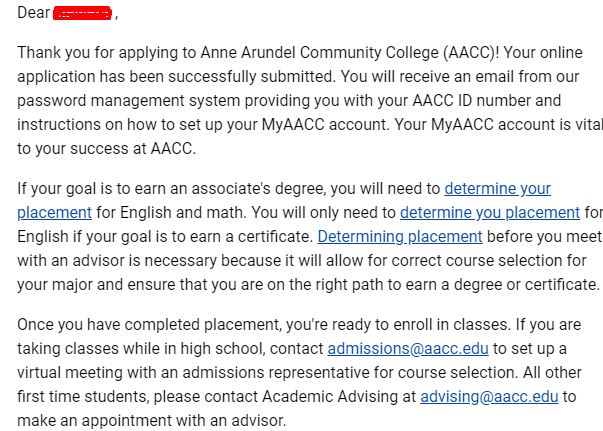
Where, AACC edu email ID very important for the generation of Edu email and password.

In this step
- Enter the DOB
- Now enter the complete address along with Postal code, state, country
- Enter the school name again and earned year should be 2016
- And then click on the “SUBMIT” button.
Wait for the 24 hours for the University email, this email consists of Username and password link (user generated password link).
After 24 Hours Action
- To generate the password, Use this link for the password generate.
- Enter the username (which is available on the email, that you received).
- Now enter the;DOB, AACC ID, and Security questions.
- Enter the password and click on the submit button.
Then, the link is redirected to the login page, then use your email address “username@mymail.aacc.edu” and generated a password.
Mailbox Access
Visit the official AACC link and use the email ID and password for the mailbox dashboard.
How to get free edu email (Method 5) – dvc.edu
- Go to this URL – https://www.dvc.edu/future/steps/index.html and click on “Enroll as a New Student.”
- Then tick on “Step one Apply” and then “CCCApply”. The website uses CCCApply Portal to give the .edu email so; first, we have to create the CCCApply account.
- If you don’t have the CCCApply account then no need to get disturbed we have got you covered just follow this article.
- After successfully applying from the CCCApply, you will get your .edu email. Some got their email within 3hr of using it. Here is the proof below.
Note: You may have to reset the password a few times at first if you face a problem login into the account.
How to get free edu email (Method 6) – openccc.net
Part 1 :
- You have to signup to opencc at first by following this given link. Click one “Create an Account” and the click on “Begin creating My Account”.
- If you are USA citizen then fill your info but if not then don’t worry. Follow this link and generate fake information of california and use that information to register. Remember age should be under 20-23 only. If the name you have generated have age more than that then just decrease age while signing up.
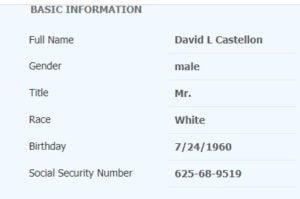
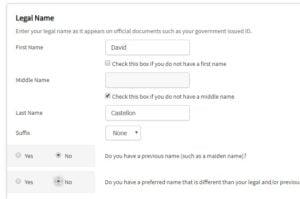
- Enter the data you generated into the Account Creation on the application. Enter name, birthdate and social security number. Select “I don’t have a middle name”. Also, select No for the Previous name and No for Preferred Name. Also, select None for Suffix. Then click “Continue”.
- Enter your email. Then enter US phone number. If you don’t have US phone number then get it. Leave second phone number empty. Enter the street address from the address you have generated. Then click continue. If it says we can’t find your address after you click continue then just click ok and check I verify my address and hit continue.
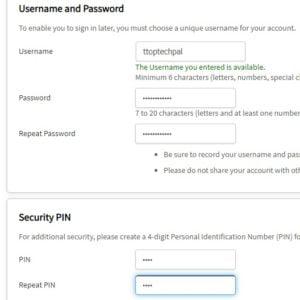
- Enter a username, password and pin.
- Choose random security question answer and Solve the captcha. Then click “Create My Account”.
Part 2 :
If you are US citizen fillup required fields with your own info. If not then follow the steps given below.
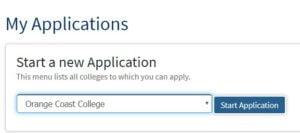
- Click continue now sign in with your username and password if you are signed out. Select orange coast college from the list then click start my application.
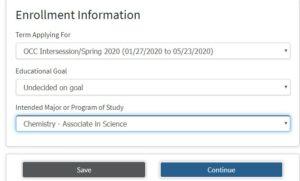
- Term should be near to the date you are applying like I am applying in January 2020. Select undecided goal and random major subject and click continue.
- Click on “My mailing address is the same as the Permanent Address in my OpenCCC Account above” and continue.
- Select first time after leaving high school. Select received high school diploma from US school and date just 1 year before you are applying for this application. Select yes and no respectively.
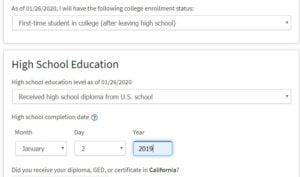
- Select i attended high school and then state california. Select school “Apple valley high”or scarmento high. Select your own data if you are from US
- select G.P.A above 3-4 . Select 12 grade AP English compostion and literature, grade as ‘A’ and select algebra1 and grade’A’. Then continue
- US citizen and military status none
- California residency yes other no and no.
- Select yes in every field. Athletic interest as no. Select a random programme and continue.
- Select your gender and sexual orientation straight. Guardian education level as a high school graduate and continue.
- Click Latino or Hispanic as ‘no and race white, European.
- Select city Austin and state California.
- No, No, 12, game respectively.
- Check every field and I consent and submit your application. Then just click continue.
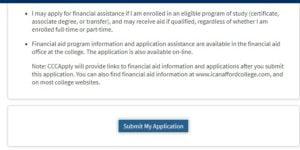
- Now wait a few days and after that, you will receive an email with Edu email login data.
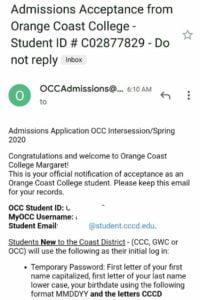
- Enjoy all the features with this method.
How to get free edu email (Method 7) – elluciancrmrecruit.com
In this method we will apply to College of philadelphia and get edu email address. The email address provided by them worked successfully on azure. Let’s learn how to get free edu email address with this method.
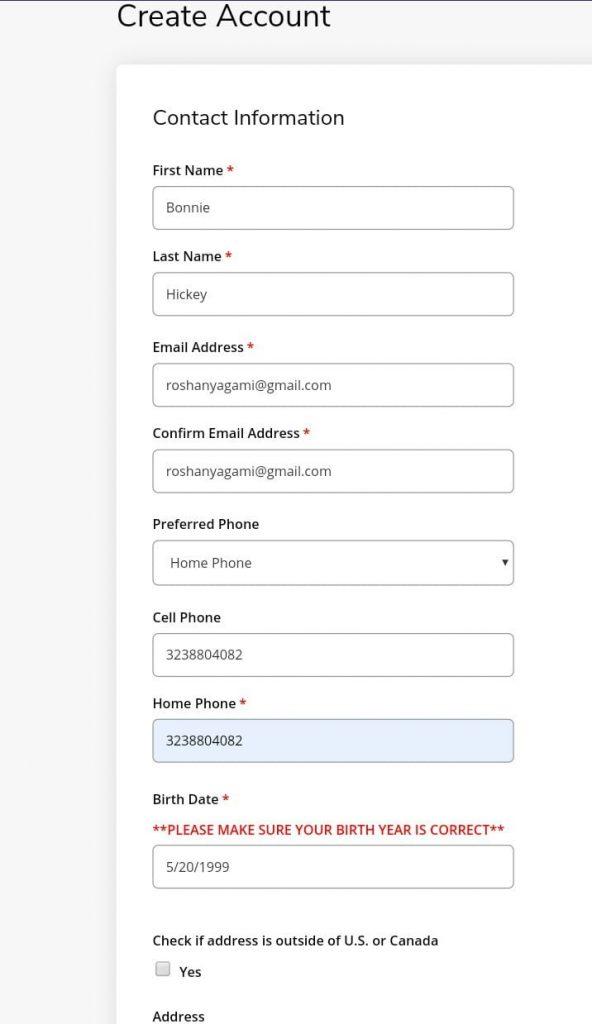
- You need to apply to College of Philadelphia at first in our step for free edu email. First of all connect vpn to USA if you are outside from USA. To apply click here. Enter you name, email, phone number, date of birth (less than 21 years) just as the picture given below.
- If you aren’t from USA then generate fake address of usa by clicking here.
- Now enter address same as that of fake address generator.
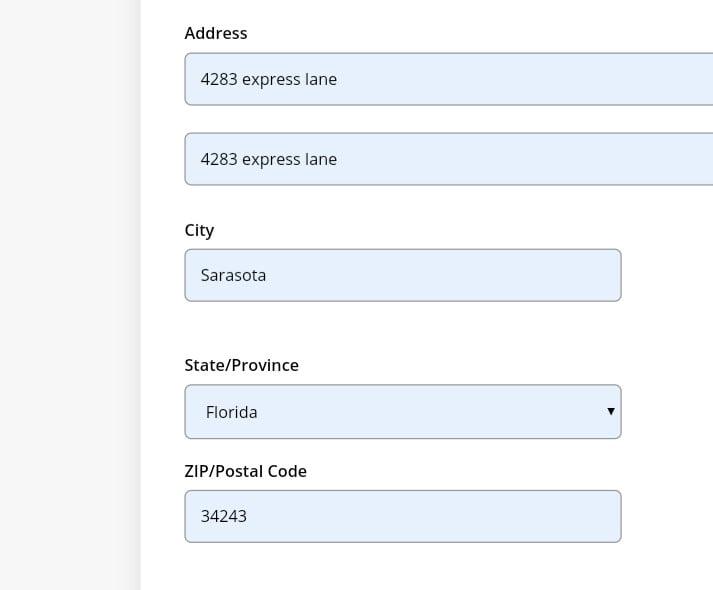
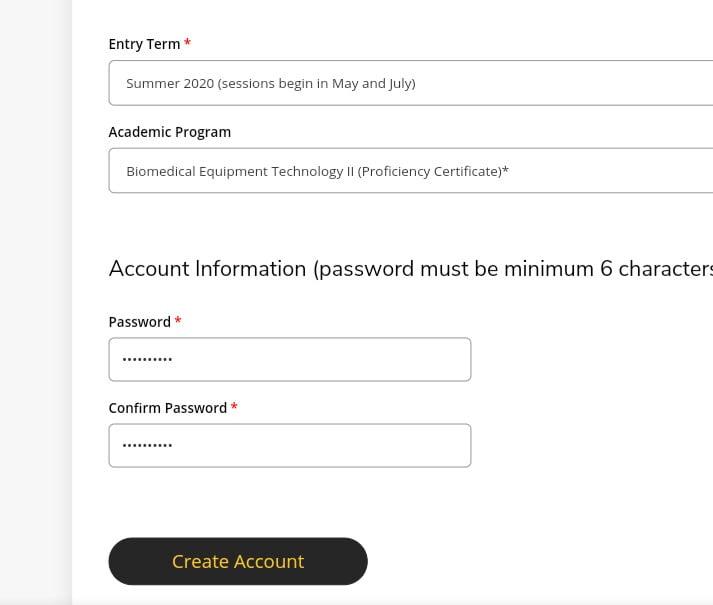
- Enter term and random academic program and set your password. Then create your account.
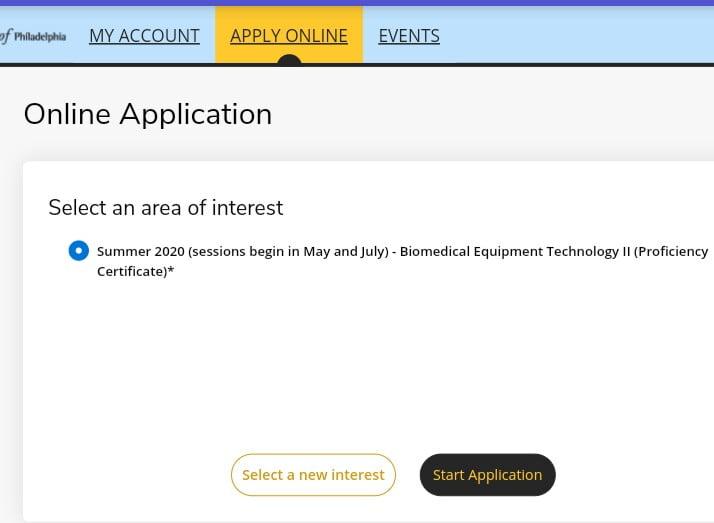
- Now after that you need to apply online. Select apply online option from the top. Now start your application.
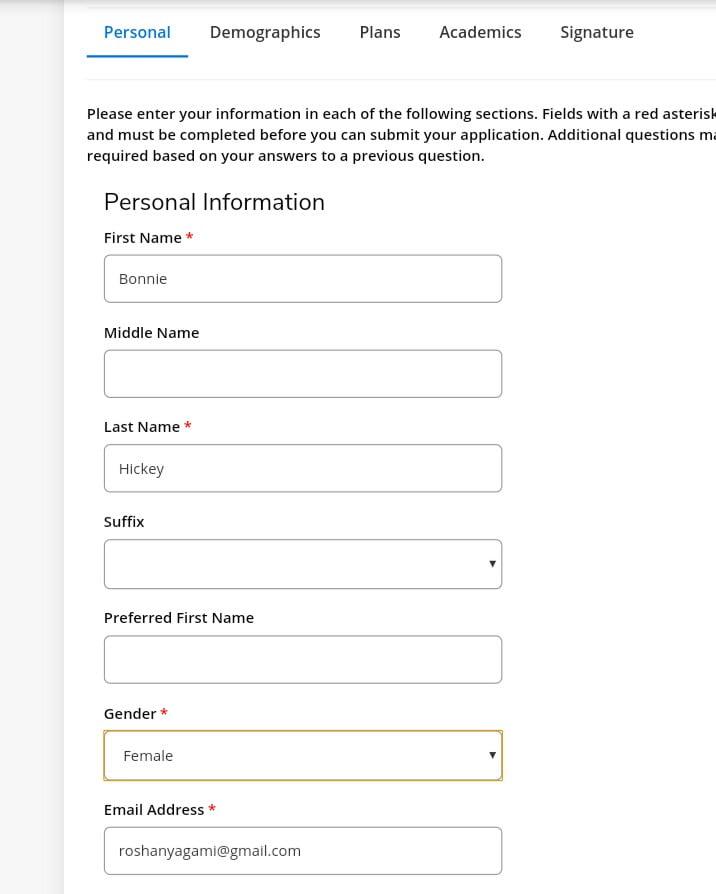
- Enter your name, email, address same as before.
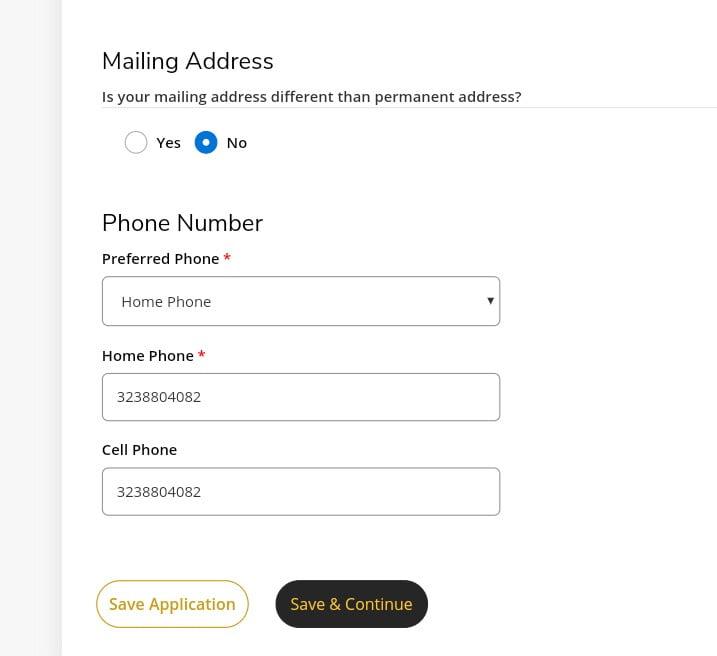
- Select your mailing address isn’t different by clicking no. Then enter your phone number. If you aren’t from USA then enter random fake number or virtual numbers.
- Enter your info as directed if you are from USA. If you aren’t from USA then enter fake info that you generated before. Enter fake SSN, select non-hispanic/latino, then select white if you are entering fake info. Note the info you entered.
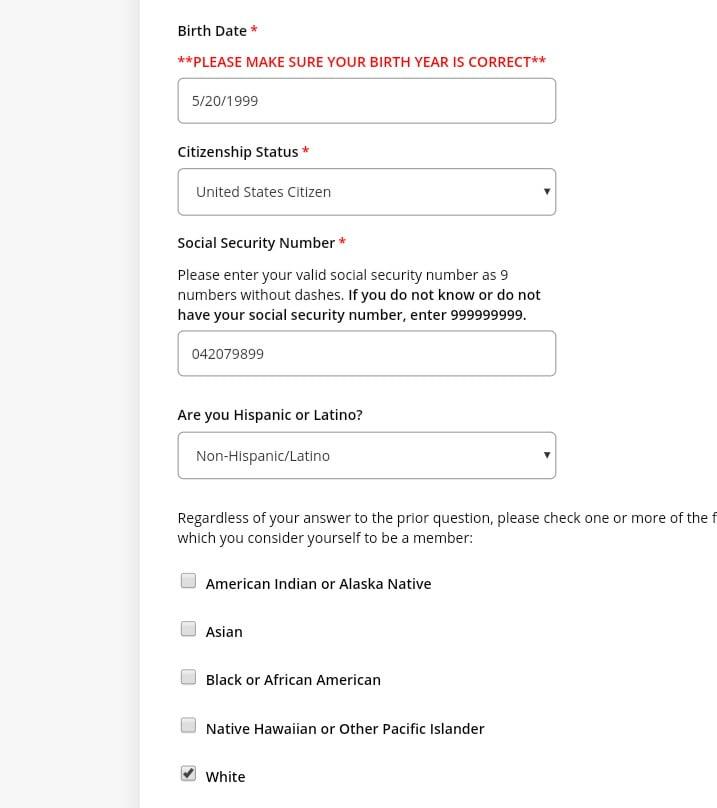
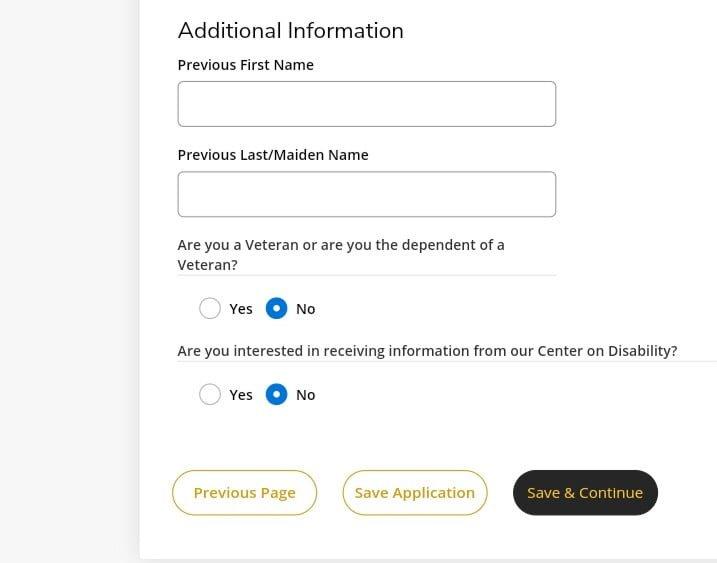
- Select no on both option as below and click continue.
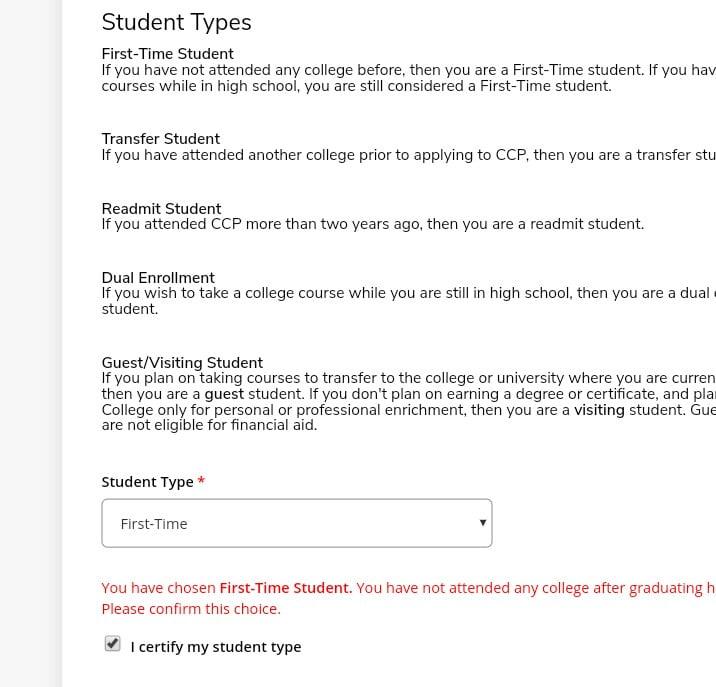
- Select student type first time and then tick you certify.
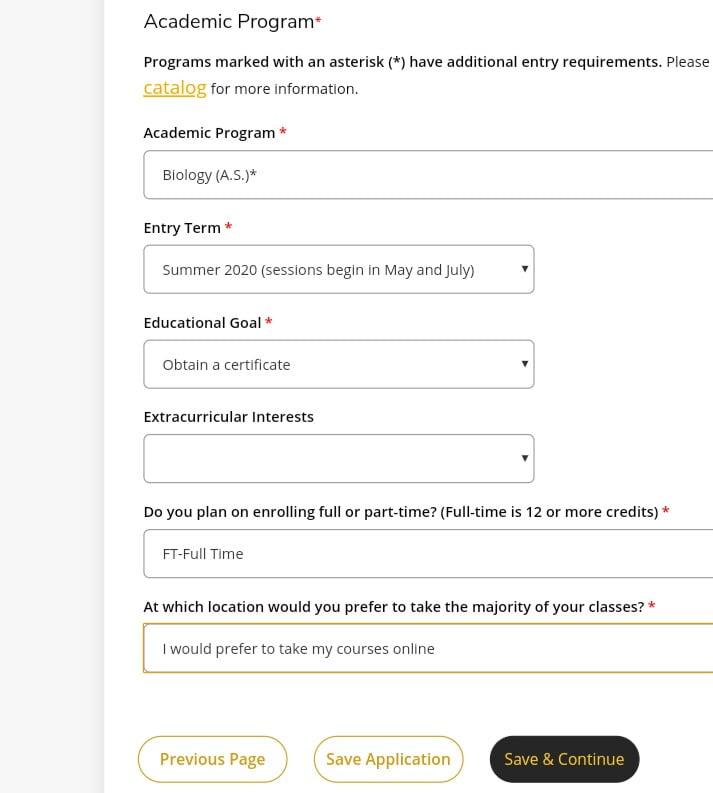
- Select random academic program, entry term close to date you are applying ad educational goal to obtain a certificate. Enter full time and i would like to take my course online.
- Then click you received GED then continue.
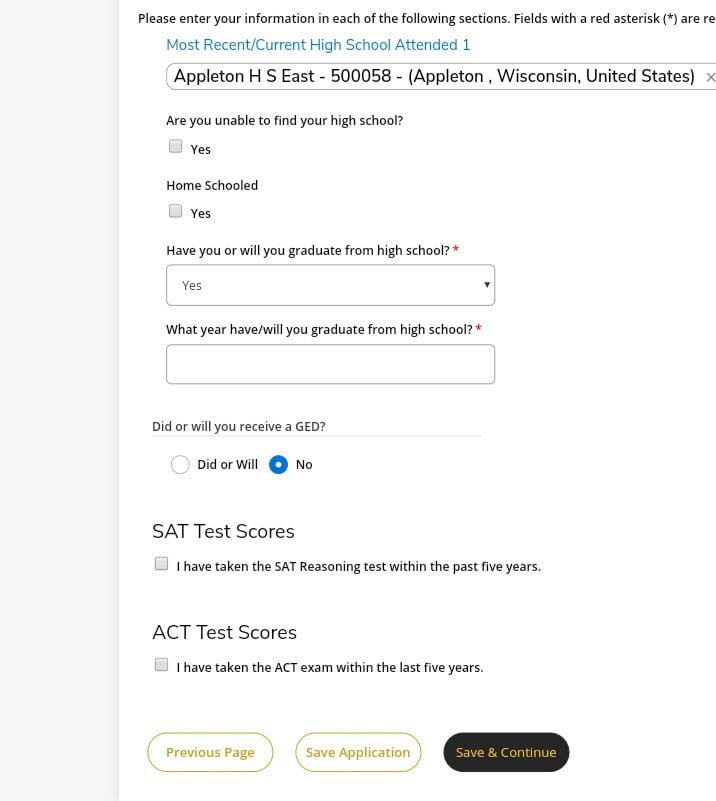
- Then select all yes as given in picture and click on submission.
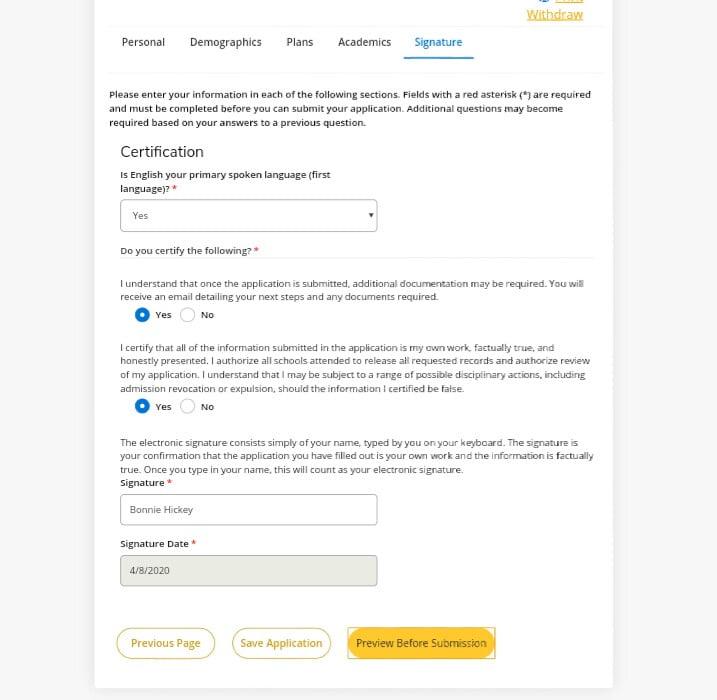
- Then submit you application
- After around 4 days you will receive email like this
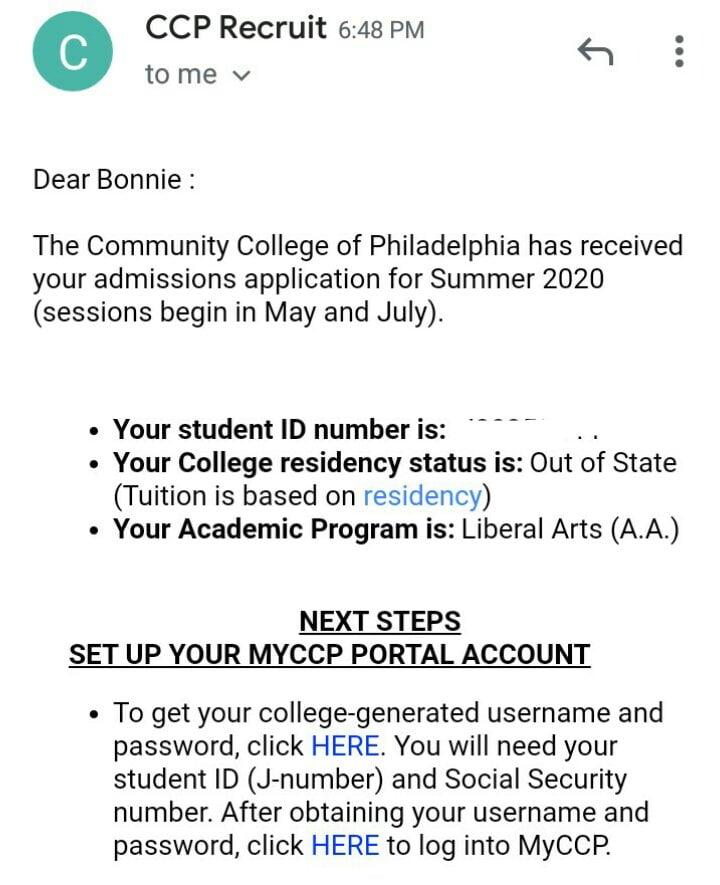
- Then after you receive email click on the first link given in the email for your free edu email address. Then click on “click here to get your username and password option.”
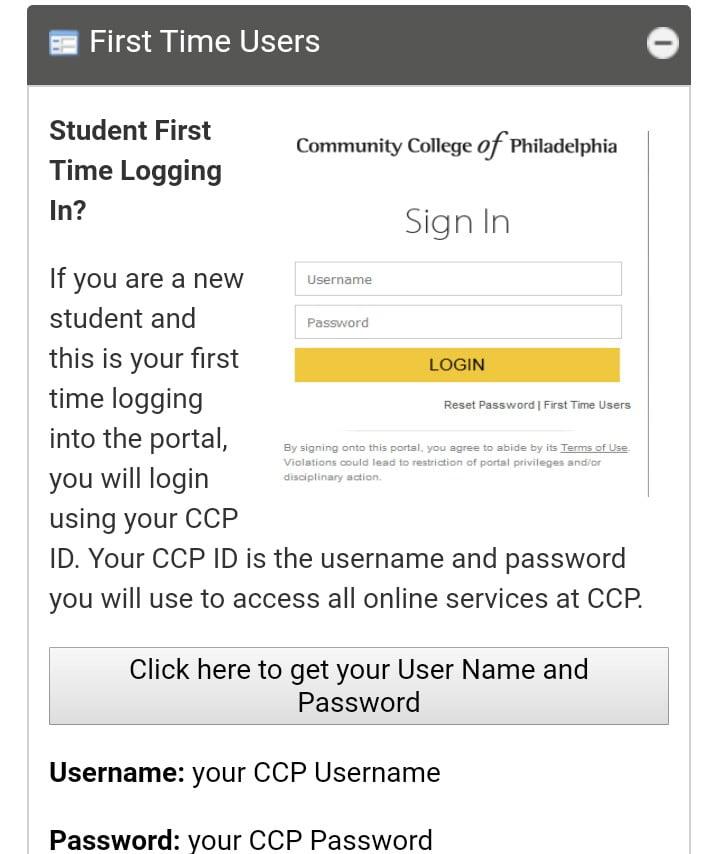
- Enter your student ID you received in email address and then enter SSN you entered before. Then click on retrieve login information.
- You will get your login information. BOOM!! login with your details at my.ccp.edu and get your free edu email address.
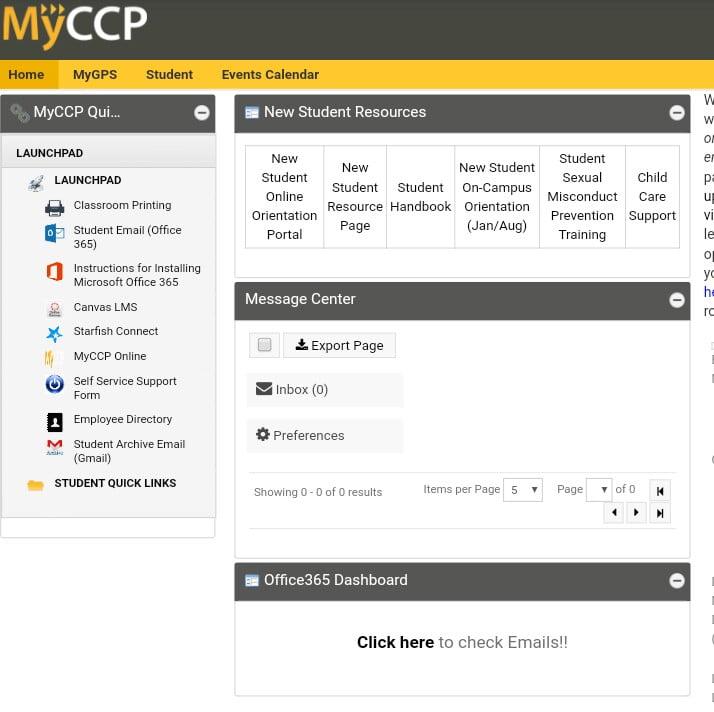
- Congrats this email works on azure too.
- Note: Don’t enter same personal details as i did. Enter different academic program. Except personal detail and you course details, other should be same.