
Sharp Scans, Zero Compromise: How to Create Clean, Professional PDFs
Mobile scanning is fast—but speed often destroys quality. Too many “scanned” PDFs are over-compressed, blurry, and hard to trust. Text loses definition, edges break down, and the document looks questionable. The cause is simple: most mobile scanning apps prioritize file size over clarity.
If you need documents that are readable, credible, and suitable for business or legal use, quality cannot be
optional.
Why Scan Quality Actually Matters
This is not about appearances—it is about usability and trust.
High-quality scans:
- Preserve small print and fine detail
- Keep signatures, stamps, and seals legible
- Improve OCR accuracy for searchable files
- Meet the standards required by banks, courts, and institutions
When document quality matters, businesses often rely on professional document scanning services rather than consumer apps to ensure consistency, accuracy, and compliance.
Apps That Don’t Destroy Your Documents
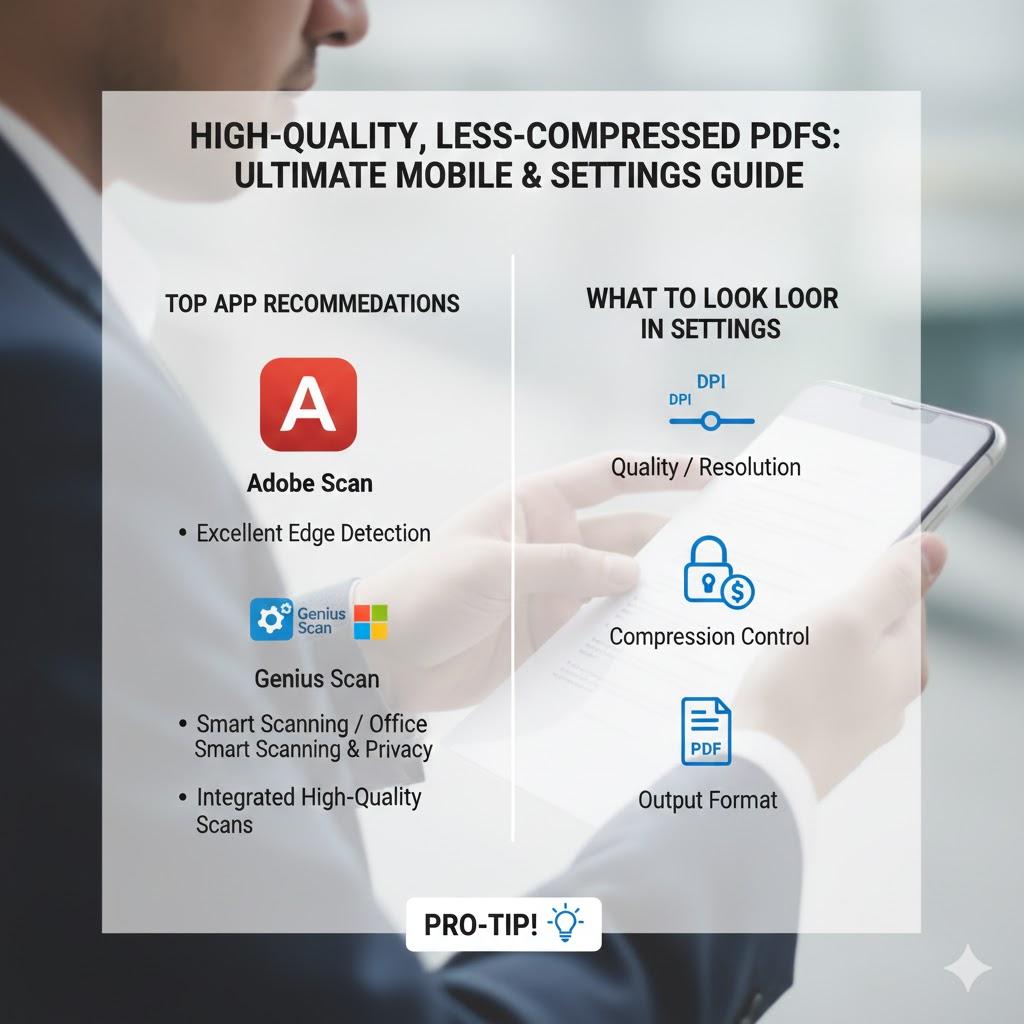
Adobe Scan
A strong free option with excellent edge detection and background cleanup. It produces clear PDFs by default and is a noticeable upgrade from basic camera scans.
Genius Scan
Designed for clarity and control. It minimizes unnecessary compression and produces crisp PDFs, making it a solid choice for contracts, receipts, and records.
Microsoft Lens (Microsoft Office App)
Best for users in the Microsoft ecosystem. It generates smooth, readable scans and exports proper multi-page PDFs that integrate easily with Office workflows.
Settings That Separate Good Scans from Bad Ones
If clarity matters, these settings are essential:
- Resolution / Quality: Always select “High,” “Best,” or the highest available DPI.
- Compression Controls: Reduce compression whenever possible—smaller files are meaningless if text degrades.
- True PDF Output: Ensure the app generates a real, multi-page PDF, not stitched images.
For large volumes or archival material, many organizations turn to professional PDF conversion services to ensure files are properly structured, searchable, and preservation-ready.
Power User Tip
If a free app compresses too aggressively, consider upgrading. Paid versions often unlock real control over quality and file size. Also, set your phone’s native camera to maximum resolution before scanning—starting with better source images leads to better PDFs.
Bottom Line
Blurry scans undermine credibility. Whether you use a high-quality scanning app, outsource to professional document scanning services, or rely on expert PDF conversion, the goal is the same: sharp, readable, professional documents that hold up under scrutiny.