
How to create a DVD or USB-Flash/USB-HDD boot disk
1. For CD/DVD :
You will need a program for recording images - for example, Nero Burning Rom. Run the program, recorder-> write the image, specify the file with the image, make sure that it is noted to "finalize the disk" and the recording method "DISC-T -ONCE (DAO)". The disk with other recording settings will not be loaded! It is also recommended for NERO to “allow the generation of short lead -out” (file -> options -> expert properties), this allows you to reduce the recording time, speed up the compact recognition time and slightly increase the “capacity” of the blank. The recording speed is minimal in reasonable limits. I recommend 8-16x for CDs or 4x-for DVD. The principle is this: we write more slowly -> faster (more reliable) read.
You can also use other programs that allow you to record images (for example, Ultraiso, Alcohol 120, ...).
2. Installation of the assembly on the USB flash drive :
Attention!!! Many utilities (for example, standard Windows Format) do not fully format the USB flash drive, they look at it, and do not touch the areas that seem correct to them. Therefore, it is advisable to first clean the USB flash drive, for example, using RMPREPUSB, HDD Low Lowel Format Tool or start a test for any of the Flashnull, Check Flash, HD Tune Pro, Flash Memory Toolkit Pro, this is guaranteed to kill the scheme and force the formatting program to do everything from zero from zero . After cleaning, it is imperative to “jam” the flash drive, and after formatting, perform its check using Checkdisk (2K10 \ Programs-2K10 \ HDD-Utilites \). With the errors found, repeat the cleaning of the flash drive and formatting. If formatting is used using bootice -> Parts Manage -> Reformat USB Disk, then this is an extra operation. Bootice when formatting automatically makes cleaning.
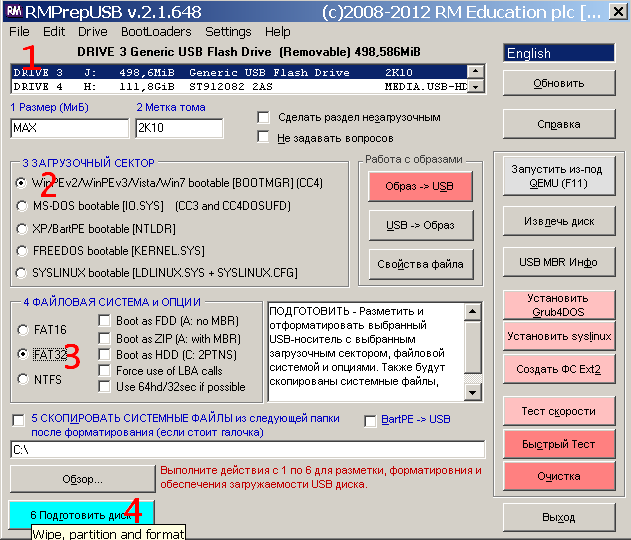
2.1 flash drive must first format (attention! All data on the flash drive will be destroyed). This is necessary so that the flash drive is perceived by BIOS as a USB-HDD, from which the operating system is possible. If the flash drive/screw has already been used as bootable, this item can be skipped. It is recommended to format the flash drive under FAT32 (in this file system it works longer and more stable), but, if necessary, you can use NTFS (it “kills” the flash drive faster, requires “safe extraction”, but it supports files more than 4GB). It is best to do this using RMPREPUSB (there is 2K10 \ Programs-2K10 \ Flash-Utilites \ RMPRPUSB or P2StART.EX 2K10 \ USB-Flash Utilities in assembly along the way 2K10 \ Programs-2K10 This utility creates the geometry on the flash drive as close to the screw as possible. If you mark Boot As HDD (C: 2PTNS), two sections will be created on the flash drive (the second minimum size, for maximum imitation of the screw). But I do not recommend using this option, such a flash drive will “hang” household appliances (TVs with a flash player, players, etc.). It is enough to do it, as in the figure.
Alternative methods of formatting flash drives (instead of 2.1)
2.1.1 format the USB flash drive using HP USB Disk Storage Format Tool (there is 2K10 \ Programs-2K10 \ Flash-toilites \ HPUSBFW \ or in the menu in the assembly on the way in the USB-Flash Switch), you can use rapid formatting. On some PCs may not work (the bootloader is incorrectly connected to the flash drive). If it works, you can use both FAT32 and NTFS.
2.1.2 Format the USB flash drive using bootice (2K10 \ Programs -2K10 \ Flash -utilites \ bootice \) ... It is recommended to format as: Bootse (choose a flash drive) -> Parts Manage -> Reformat USB DISK -> USB -HDD Mode ( Single Partition) -Align to Sectors: 2048 -> Next -> FAT32 (NTFS) -> OK. It also does not always work, for me - the bootloader is connected correctly only under NTFS.
2.1.3 We use fbinstool (2K10 \ Programs-2K10 \ Flash-utilites \ fbinstool \). A utility for non-standard formatting of flash drives creates a special type structure (USB-Zip or USB-HDD). Choose a flash drive (focus on size!), Mark in formatting options: -Raw -force , format.
2.1.4 We use the FlashFormat_2K10_FBINST (2K10 \ Programs-2K10 \ FLASH-UTILITES \ FBINST-FF \). A utility for non-standard formatting of flash drives creates a special type structure (USB-Zip + USB-HDD). Choose a flash drive (focus on size!), Use the 7. Raw Format , format.
The script automatically reconnects the USB flash drive, therefore, it is not necessary to “juggle” it after formatting.
2.1.5 To format a flash drive with automatic connection bootloader of the Xorboot , it is recommended to use scripts :
a) Flashformat_2k10_fbinst - method 1 (flash drives up to 2GB under FAT16) or method 2 (4-32GB flash drives under FAT32). Support for USB-ZIP. On old systems, only WinXP-PE will be loaded.
b) Flashformat_2k10_fbinst - method 5 (flash drives up to 2GB under FAT16) or method 6 (4-32GB flash drives under FAT32). Support USB-Zip + usb-HDD. On old systems, only Win7-PE will be loaded.
c) FlashFormat_2K10_RMPREP - use if NTFS support is required, we use the 5 method (flash drives of any size). Support only USB-HDD.
Scripts automatically recover the flash drive so it is not necessary to “juggle” it after formatting.
Scripts can be used both under the OS and under the assembly (any), they will automatically connect the Xorboot to the MBR (63 sectors, PBR is ignored). Immediately after formatting, the USB flash drive can be checked for loading (launch Xorboot) under any virtual machine (for example, Mobalive).
2.2 after formatting, extract a USB flash drive and connect again.
2.3 must add assembly files to the USB flash drive - 2K10 , EFI file folders and P2Start.exe . The Bootmgr file on the flash drive/HDD is not used, so we do not copy it. They can be unpacked from the image using 7-ZIP, Winrar, Total Commander, Far, Ultraiso or copying from a flash drive mounted by any virtual disk for a virtual disk. If the flash drive was formatted by scripts, the boot carrier is ready (Xorboot bootloader is connected).
First, it will first unpack the contents of the image into the temporary folder on the screw, and only then copy everything from it to the flash drive - it is repeatedly tested by experience. You can also mount the image as a virtual CD -ROM and copy from it - the effect is the same. If the creation of a flash drive is made under a loaded assembly, it is convenient to mount the image using IMDISK (PKM on the image, "mount ...").
The main bootloader, if desired, can be installed/changed at any time in a regular OS and under any re-collar (using the SETLDR-2K10 utility in the 2K10 folder).
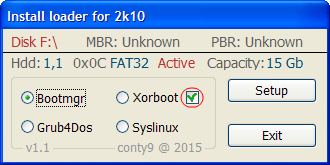
2.4 Using the Syslinux/Grub4DOS/BOOTMGR/XorBOOT bootloader using SetLDR-2K10 for flash drives/HDD :
It is necessary to make a flash drive. We go to the 2K10 \ folder on the flash drive, start the SetLDR-2K10 utility and install the desired bootloader from the 2K10 assembly. Chekbox (on the right of Xorboot inscriptions) - allows you to additionally install the Xorboot intermediate bootloader for Bootmgr/Grldr (it will immediately load the latter). The utility also checks the launch rights (if the UAC is active), the presence of bootloaders, and allows you to make the section active (if necessary).
3. Naassovka on USB / USB-HDD / HDD :
3.1 a screw must be formatted by any HDD breakdown program, create an primary active/loading section of a suitable size (at least 2GB). The file system is selected by FAT32, but, if necessary, you can use NTFS.
If HDD is simultaneously used to transfer data, it is convenient to break it like this: we make two primary sections (if necessary, you can be more sections, but the first and last, under the assembly, the primary, in the middle may be logical). The first section is formatted for our needs at FAT32/NTFS/..., the size of the screw capacity minus 3-5GB. The second (or last section, for assembly) - be sure to make active/loading, under FAT32. We install the assembly on this section. Why is it? It is most convenient - if you need to delete the section with the assembly, or, conversely, increase the place for this section, the operation will be quickly done using almost any disks manager without loss of data in the first sections.
PS when using in NTFS loader Syslinux , loading problems are possible, so it is recommended to do USB/HDD breakdown using Paragon HDM .
3.2 we copy the assembly to the active section HDD (similarly to clause 2.3) and connecting the bootloader (clause 2.4).
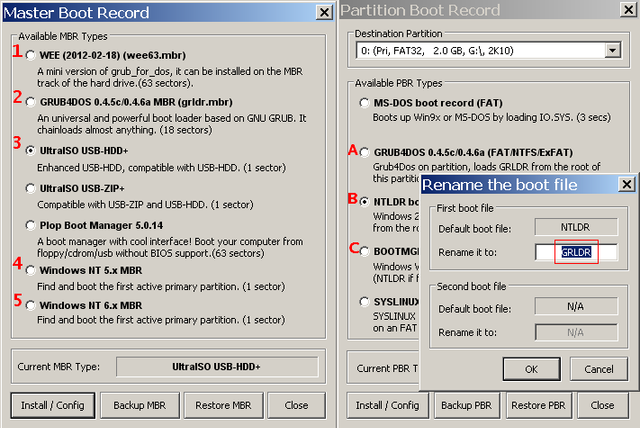
Alternative methods for using the GRUB4DOS bootloader using Bootice (2012) for flash drives/HDD :
1. WEE bootloader. It is put completely in MBR (PBR is ignored), occupies 63 sectors (non -standard!). There is a built-in menu (you can rule when installing) that allows you to find and download NTLDR, BOOTMGR, GRLDR, ... Due to non-standard, it is not recommended for a universal flash drive, but very convenient, for example, as a BOOT manager on a system disk.
2. Grub4DOS in MBR (PBR is ignored), takes 18 sectors (non -standard!). Grldr immediately launches. Due to non -standardity, it is not recommended for a universal flash drive.
3a. USB-HDD+ in MBR, GRUB4DOS registration in PBR. A good option is put and works on most flash drives, especially suitable for FAT32.
3b. USB-HDD+ in MBR, NTLDR registration in PBR. When installing or rename the bootloader, rude in the root of the disk on the NTLDR, or indicate the name grldr when registering in PBR (see in the picture). A good option, 3A similarly.
3C. USB-HDD+ in MBR, Bootmgr registration in PBR. When installing or rename the bootloader rude in the root of the disk on the bootmgr, or indicate the name grldr (or grubmgr for assembly) when registering in PBR. A good option, 3A similarly.
4b. Windows NT 5.x MBR in MBR, NTLDR registration in PBR. When installing or rename the bootloader, rude in the root of the disk on the NTLDR, or indicate the name grldr when registering in PBR (see in the picture). A good option for loading on different glands, but it rarely works on flash drives (depends on the flash drive chip?), Especially under FAT32.
5C. Windows NT 6.x MBR in MBR, Bootmgr registration in PBR. When installing or rename the bootloader rude in the root of the disk on the bootmgr, or indicate the name grldr (or grubmgr for assembly) when registering in PBR. A great option for loading on different glands, on some flash drives may not work under FAT32 (depending on the flash drive chip?). Implemented by the SetLDR-2K10 utility.
My recommendations: for flash drives, if you do not need to transfer files more than 4GB, try to install the SetLDR-2K10 with a utility, check the download in Mobalive. If it does not work, use NTFS+SetLDR -2K10 or the installation option using bootice - 3C (3A, 3B - they practically do not differ) for FAT32.