
What would you do if all of your crucial files suddenly vanished from your computer? If that thought bothers you, you're in the right place.
In today's digital age, your computer holds essential documents, personal memories, and work information. We rely on it every day, yet we rarely consider what would happen if the data were destroyed.
Issues such as hardware failure, unintentional deletion, ransomware, or even PC storage errors can render your files unavailable in seconds.
Without a backup, restoring lost data might be difficult or impossible. That is why having a dependable backup system is critical; it protects your files and provides prompt recovery when necessary.
In this article, you'll discover the most effective backup solutions and practical steps for keeping your data safe and secure.
Why Your PC Needs a Backup?
Many users forget about backups until it's too late. Your computer houses critical data such as documents, images, projects, and personal files, which can be lost in seconds.
Regular backups allow you to prepare for unexpected situations and minimize unnecessary stress. They guarantee that your key data remains accessible even in the face of unexpected challenges.
Here’s why backups are essential:
- Hardware failures can occur without warning
- Cyber threats like ransomware can lock or delete your files
- Accidental deletion is more common than you think
- System crashes can corrupt important data
Having a backup assures that your data is safe and recoverable, even in the worst-case scenario.
List of Best Backup Strategies Every PC User
1. Follow the 3-2-1 Backup Rule
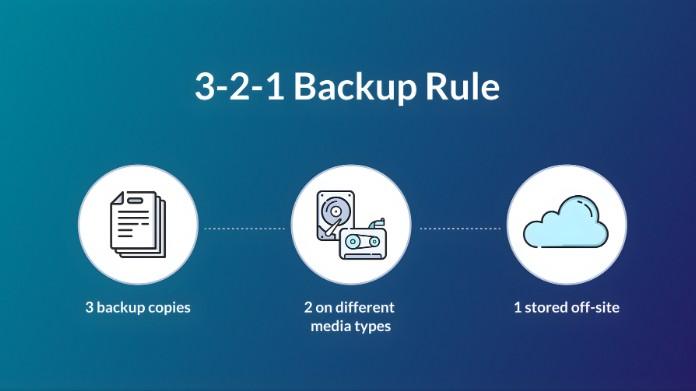
The 3-2-1 backup way is a simple and dependable way to safeguard your data against loss. It reduces the risk of losing everything by storing multiple copies of your files across multiple locations, ensuring your data is safe even if one backup fails.
- Keep 3 copies of your data
- Use 2 different storage types
- Store 1 copy off-site
It ensures maximum protection against data loss.
2. Use External Hard Drives

External hard drives are one of the easiest ways to quickly and safely create backups. They enable you to store a lot of material locally and access it at any moment without using the internet.
They are quite beneficial to clients who prefer offline storage.
- Fast and easy to use
- No internet required
- Ideal for large files
Make sure you back up regularly & disconnect the drive when it is not in use.
3. Use Cloud Storage
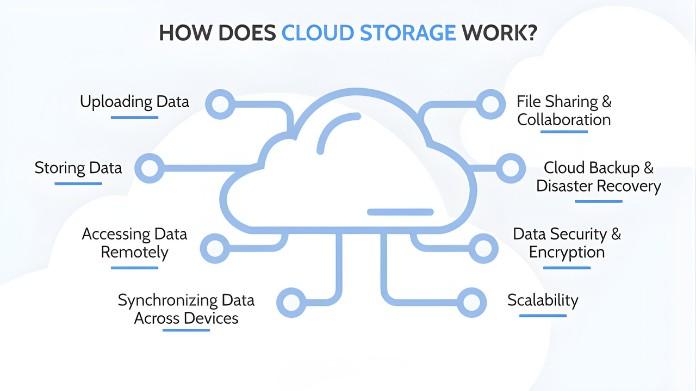
Cloud storage offers a secure off-site backup alternative that protects your data even if your physical device is damaged or lost. It also provides quick access from anywhere.
It provides a convenient alternative for automatic & continuous backups.
- Access data from anywhere
- Protection against physical damage
- Automatic syncing options
Always implement strong security measures such as two-factor authentication.
4. Automate Your Backups

Automating backups increases consistency and reduces the possibility of forgetting to back up important files. It will instantly update your information. This improves the consistency of your backup strategy over time.
- Use built-in tools like Windows Backup
- Schedule daily or weekly backups
- Set it once and let it run
5. Create System Image Backups
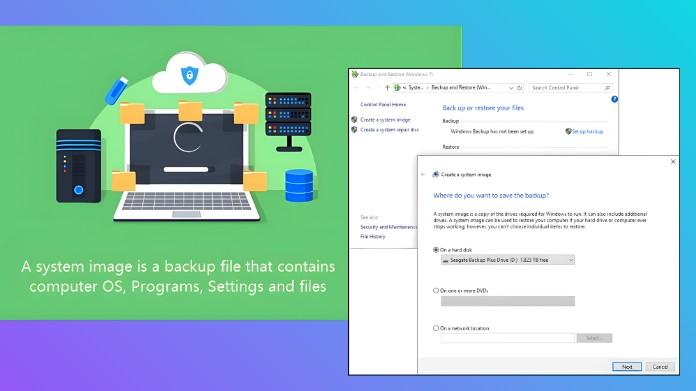
A system image backup saves your entire system, making it easier to recover everything in the event of a serious failure. It is useful for full recuperation. It can save significant time during system crashes.
- Includes OS, apps, and settings
- Helps in full system recovery
- Useful before major updates
6. Use Versioned Backups
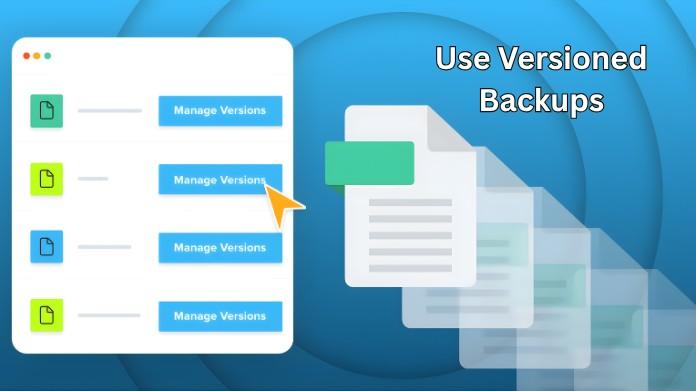
Versioned backups let you save multiple copies of a file so you can revert to a previous version if needed. This is useful when files are mistakenly modified or removed. It provides additional control over file recovery.
- Restore older versions easily
- Prevent loss from accidental edits
- Great for ongoing projects
7. Protect Against Ransomware
Ransomware attacks can encrypt your data, but keeping backups make sures that you do not lose access forever. Keeping backups secure is essential. It provides an additional layer of defense against cyber dangers.
- Store backups offline or securely in the cloud
- Avoid suspicious downloads
- Keep your system updated
8. Test Your Backups Regularly
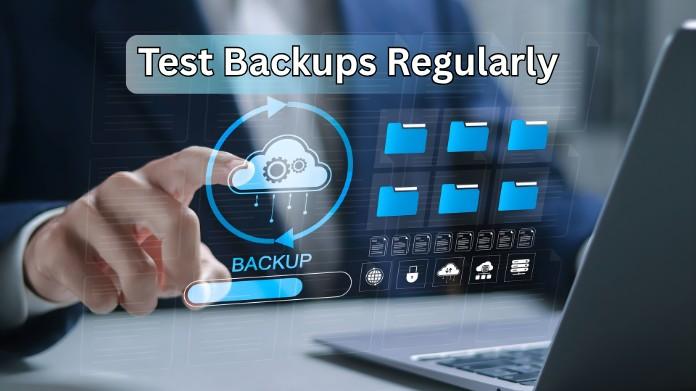
Testing your backups makes sure they will function properly when needed. It allows you to confirm that your data can be recovered without difficulties. Regular testing protects against unexpected difficulties during recovery.
- Try restoring files occasionally
- Check backup completeness
- Ensure recovery steps are clear
Final Thoughts
A good backup system does not have to be sophisticated, but it should be consistent. By combining solutions such as local backups & cloud storage, you can maintain your data safe and quickly recoverable when necessary.
Taking small steps regularly can significantly improve the security of your critical information.Backups do more than save files.
They provide you with reassurance. Begin using these measures today to ensure that you are always ready for unexpected data loss.
Taking small steps regularly can significantly improve the security of your critical information.Backups do more than save files.
They provide you with reassurance. Begin using these measures today to ensure that you are always ready for unexpected data loss.
About the Author
Hi, I'm Bran Bolton, a tech enthusiast & PC user who enjoys researching practical ways for keeping PCs secure and efficient.
In this article, I've discussed some of the most reliable backup options I personally use to protect critical data.
Feel free to share your opinions and experiences, since they can help others develop better backup strategies.
In this article, I've discussed some of the most reliable backup options I personally use to protect critical data.
Feel free to share your opinions and experiences, since they can help others develop better backup strategies.
Reference:
Griffith, E. (2026, March 30). Your future self will thank you: The Beginner’s guide to backing up your PC. PCMAG. https://www.pcmag.com/explainers/your-future-self-will-thank-you-beginners-guide-to-backing-up-your-pc