
Basic tasks for creating a PowerPoint presentation
Basic tasks for creating a PowerPoint presentation
PowerPoint presentations work like slide shows. To convey a message or a story, you break it down into slides. Think of each slide as a blank canvas for the pictures, words, and shapes that help you build your story.
Choose a theme
When you open PowerPoint, you’ll see some built-in themes and templates. A theme is a slide design that contains matching colors, fonts, and special effects like shadows, reflections, and more.
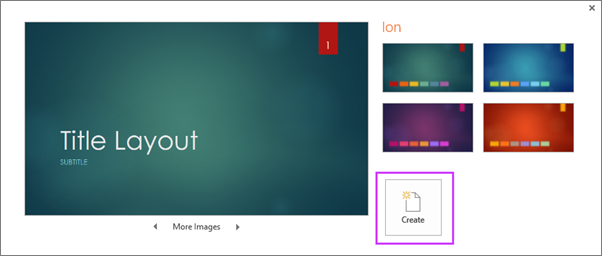
On the File tab of the Ribbon, select New, and then choose a theme.
PowerPoint shows you a preview of the theme, with four color variations to choose from on the right side.
Click Create, or pick a color variation and then click Create.
Insert a new slide
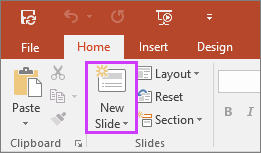
On the Home tab, click the bottom half of New Slide, and pick a slide layout.
Save your presentation
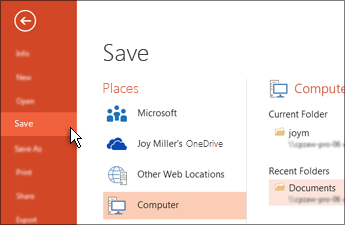
On the File tab, choose Save.
Pick or browse to a folder.
In the File name box, type a name for your presentation, and then choose Save.
Note: If you frequently save files to a certain folder, you can ‘pin’ the path so that it is always available (as shown below).
Tip: Save your work as you go. Press Ctrl+S often.
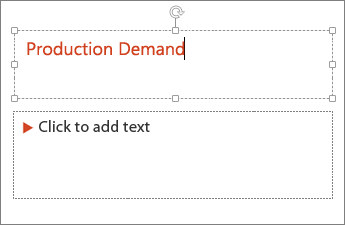
Select a text placeholder, and begin typing.
Format your text
Select the text.
Under Drawing Tools, choose Format.
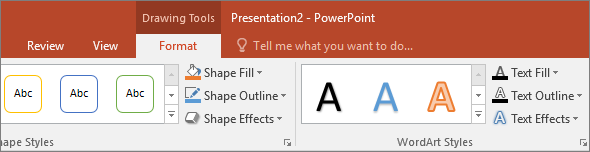
Do one of the following:
To change the color of your text, choose Text Fill, and then choose a color.
To change the outline color of your text, choose Text Outline, and then choose a color.
To apply a shadow, reflection, glow, bevel, 3-D rotation, a transform, choose Text Effects, and then choose the effect you want.
Add pictures
On the Insert tab, do one of the following:
To insert a picture that is saved on your local drive or an internal server, choose Pictures, browse for the picture, and then choose Insert.
To insert a picture from the web, choose Online Pictures, and use the search box to find a picture.
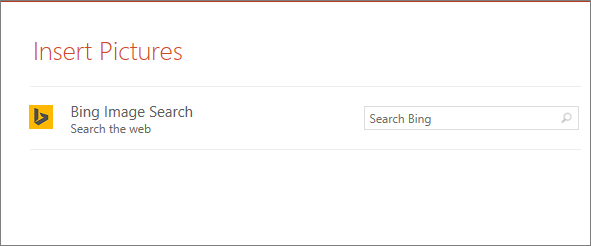
Choose a picture, and then click Insert.
Add speaker notes
Slides are best when you don’t cram in too much information. You can put helpful facts and notes in the speaker notes, and refer to them as you present.
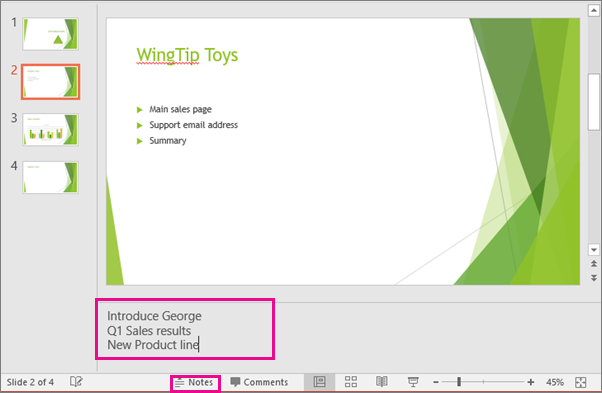
To open the notes pane, at the bottom of the window, click Notes  .
.
Click inside the Notes pane below the slide, and begin typing your notes.
Give your presentation
On the Slide Show tab, do one of the following:
To start the presentation at the first slide, in the Start Slide Show group, click From Beginning.
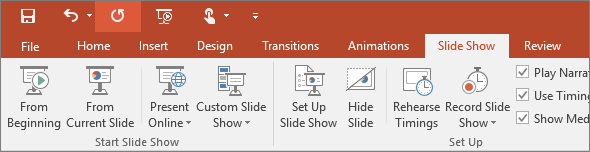
If you’re not at the first slide and want to start from where you are, click From Current Slide.
If you need to present to people who are not where you are, click Present Online to set up a presentation on the web, and then choose one of the following options:
Tip: For information about viewing your notes as you give your presentation without the audience seeing them, see View your speaker notes as you deliver your slide show.
Get out of Slide Show view
To get out of Slide Show view at any time, on the keyboard, press Esc.
Choose a theme
When you start a new presentation PowerPoint, you’ll have the opportunity to choose a theme or template. A theme is a slide design that contains matching colors, fonts, and special effects like shadows, reflections, and more.
On the File tab, select New, and then, under Available Templates and Themes, choose Themes.
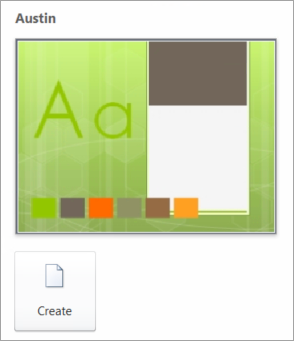
As you click each theme, PowerPoint shows you a preview on the right side.
When you find the one you want, click Create.
Insert a new slide
On the Home tab, click the bottom half of New Slide, and pick a slide layout.
Save your presentation
On the File tab, choose Save.
In the File name box, type a name for your presentation, and then choose Save.
Tip: Save your work as you go. Press Ctrl+S often.
Select a text placeholder, and begin typing.
Format your text
Select the text.
Under Drawing Tools, choose Format.
Do one of the following:
To change the color of your text, choose Text Fill, and then choose a color.
To change the outline color of your text, choose Text Outline, and then choose a color.
To apply a shadow, reflection, glow, bevel, 3-D rotation, a transform, choose Text Effects, and then choose the effect you want.
Add pictures
On the Insert tab, choose Picture.
Browse for the picture you want, and then choose Insert.
Add speaker notes
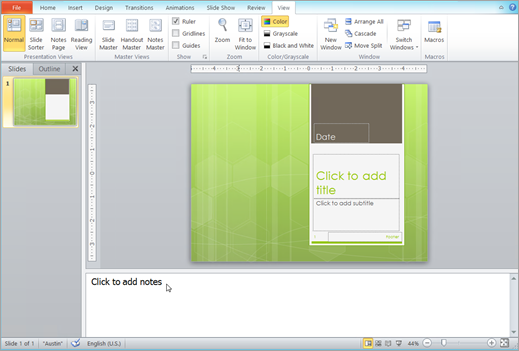
Slides are best when you don’t cram in too much information. You can put helpful facts and notes in the speaker notes, and refer to them as you present. In Normal view, the Notes pane is located just below the slide view window.
On the View tab, in the Presentation Views group, click Normal.
Click inside the Notes pane below the slide, and begin typing your notes.
Give your presentation
On the Slide Show tab, do one of the following:
To start the presentation at the first slide, in the Start Slide Show group, click From Beginning.
If you’re not at the first slide and want to start from where you are, click From Current Slide.
If you need to present to people who are not where you are, click Broadcast Slide Show to set up a presentation on the web. To learn more, see Broadcast your PowerPoint presentation to a remote audience.
Get out of Slide Show view
To get out of Slide Show view at any time, on the keyboard, press Esc.
Choose a theme
When you start a new presentation PowerPoint, you’ll have the opportunity to choose a theme or template. A theme is a slide design that contains matching colors, fonts, and special effects like shadows, reflections, and more.
Click the Microsoft Office Button  , and then click New.
Under Templates, click Installed Themes.
As descriptive essay topics click each theme, PowerPoint shows you a preview on the right side.
When you find the one you want, click Create at the bottom of the window.
Insert a new slide
On the Home tab, click the bottom half of New Slide, and pick a slide layout.
Save your presentation
Click the Microsoft Office Button , and then click Save.
In the File name box, type a name for your presentation, and then choose Save.
Tip: Save your work as you go. Press Ctrl+S often.
Select a text placeholder, and begin typing.
Format your text
Select the text.
Under Drawing Tools, choose Format.
Do one of the following:
To change the color of your text, choose Text Fill, and then choose a color.
To change the outline color of your text, choose Text Outline, and then choose a color.
To apply a shadow, reflection, glow, bevel, 3-D rotation, a transform, choose Text Effects, and then choose the effect you want.
Add pictures
On the Insert tab, choose Picture.
Browse for the picture you want, and then choose Insert.
Add speaker notes
Slides are best when you don’t cram in too much information. You can put helpful facts and notes in the speaker notes, and refer to them as you present. In Normal view, the Notes pane is located just below the slide view window.
On the View tab, in the Presentation Views group, click Normal.
Click inside the Notes pane below the slide, and begin typing your notes.
Give your presentation
On the Slide Show tab, do one of the following:
To start the presentation at the first slide, in the Start Slide Show group, click From Beginning.
If you’re not at the first slide and want to start from where you are, click From Current Slide.
Get out of Slide Show view
To get out of Slide Show view at any time, on the keyboard, press Esc.